Use Wozber and land your dream job
Create Resume
No registration required
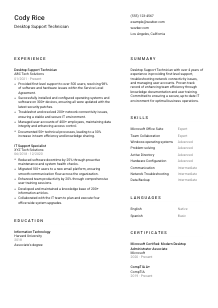
Keeping desktops running, but your resume seems frozen? Check out this Desktop Support Technician resume example, created with Wozber free resume builder. Learn how to troubleshoot your technical talents into a format that aligns smoothly with job specs, ensuring your career journey has no "blue screen of qualifications."
Desktop support work is judged in the real world by how quickly you restore a user's setup, how safely you handle access and devices, and how well you keep everyday systems running without drama. A resume for this field needs to make that operational reliability visible fast, especially around end-user support, workstation troubleshooting, account administration, patching, and clear documentation.
When those details are tailored to the posting, the resume is easier to route through ATS screening and easier for IT hiring teams to read as actual service-desk or desktop support experience instead of general tech help. Wozber's free resume builder helps you line up job-specific terms, keep an ATS-friendly resume format, and show where your background covers the support workload the team needs handled from day one.
For desktop support, the top of the resume should answer a few practical questions immediately: who you are, how to reach you, and whether you meet any basic logistics the employer has stated. Keep this section clean, accurate, and free of anything that does not help a hiring team move you forward.
Set your name in a slightly larger font than the rest of the header so it stands out at a glance. IT hiring teams often review many resumes in one sitting, and a clear header sets the same tone you want associated with your support work: organized, readable, and easy to navigate.
Place "Desktop Support Technician" under your name when that is the role you are applying for. This immediately aligns your profile with the opening and supports ATS matching, especially when the posting is looking specifically for desktop or IT support experience rather than broader infrastructure or engineering backgrounds.
List a reliable phone number and a professional email address, then add links only if they help your case, such as a polished LinkedIn profile. Double-check every character. In support roles, attention to detail matters, and a typo in your contact information sends the wrong message before anyone reads your experience.
If a role specifies a local requirement, include your city and state in this section. Here, the employer asks for someone located in Los Angeles, California, so stating "Los Angeles, California" clearly helps remove a basic screening question early. If location is not relevant for another opening, keep it simple and follow that employer's preference.
Do not include age, marital status, photo, or other non-job details unless local hiring norms require them. Desktop support hiring should stay focused on your ability to resolve incidents, support users, manage devices, and communicate clearly with both technical and non-technical colleagues.
Your header should confirm the basics without slowing the reader down. If this section is clean and accurate, the hiring team can move straight to the parts that show how you handle support volume, systems, and users.




This is where desktop support resumes usually separate themselves. Hiring managers want to see the environments you supported, the kinds of issues you handled, the scale of your user base, and whether you improved uptime, response times, or team efficiency rather than simply "providing support."
Start by marking the responsibilities and requirements that appear repeatedly in the job description. For desktop support, that usually includes first-level hardware and software support, Windows administration, Microsoft Office support, account management, device setup, network troubleshooting, patching, and documentation. Those are the themes your bullets should echo when they reflect your actual work.
Use reverse-chronological order and include the job title, employer, and dates for every position. That straightforward structure matters in IT hiring because reviewers often scan first for recent desktop support or service desk work before they study the bullet points in detail.
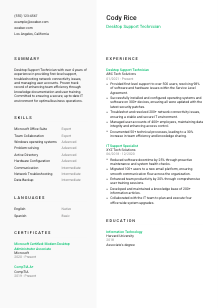
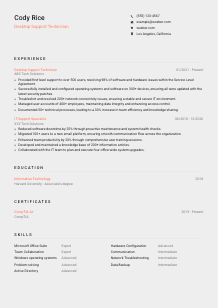
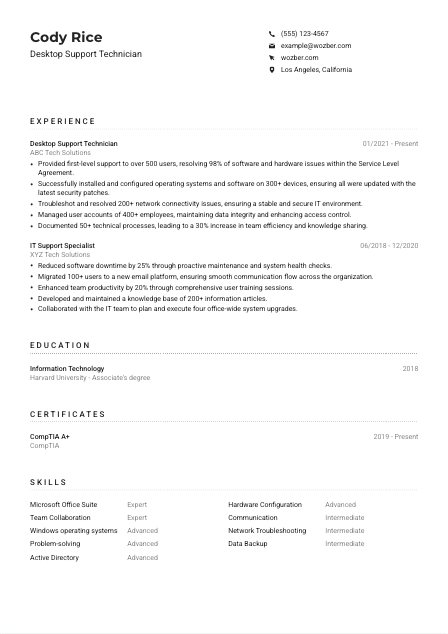
Write bullets around completed work and support results, not generic task lists. Instead of saying you were responsible for documentation or user support, show the result. The sample resume does this well with lines like resolving 98% of issues within SLA and documenting 50+ technical processes that improved team efficiency by 30%. Those bullets show pace, scope, and business value in one sentence.
Use metrics that belong naturally to desktop support work, such as ticket volume, SLA performance, device counts, user counts, issue resolution rates, deployment totals, downtime reduction, or migration scope. "Installed and configured 300+ devices" or "managed user accounts for 400+ employees" gives a much clearer picture than vague statements about assisting users or handling equipment.
If your background includes broader IT work, choose bullets that are closest to the target role. For this type of opening, first-line support, Windows troubleshooting, account permissions, knowledge base documentation, and connectivity issue resolution deserve more space than unrelated project work. The goal is to make your resume read like someone who can step into a desktop support queue and contribute immediately.
Your experience section should show that you can support users at scale, solve common endpoint and access issues, and keep systems current without losing sight of security or service quality. Make the scope and the results easy to spot.
Education is usually not the most persuasive part of a desktop support resume, but it still matters when the employer names a required credential. Present it clearly so the reviewer can confirm the baseline qualification and move on to your hands-on support record.
If the posting asks for an Associate's degree in Information Technology or a related field, list that credential clearly. When your degree title differs slightly, use the official wording from your school and make sure the field still reads as relevant to desktop support, systems support, or general IT foundations.
Include the degree, school, field of study, and graduation year or date range. Recruiters and IT managers are usually scanning this section to confirm requirements, not to read a long academic profile, so straightforward formatting works best.
If your coursework or degree sits close to the requirement, state it plainly. In the sample, an Associate's degree in Information Technology maps directly to what the employer requested. If your background is in a related area such as computer systems or network administration, keep the wording clear enough that the connection is obvious.
Early-career candidates can benefit from listing a few applicable subjects such as operating systems, networking, hardware support, cybersecurity basics, or systems administration. If you already have several years of desktop support experience, coursework is usually less important than the support metrics in your experience section.
Honors, scholarships, or technical student leadership can help when they reinforce your IT profile, especially if you are newer to the field. Keep them brief and relevant. The section should still read as professional preparation for support work, not as a full academic biography.
This section only needs to do a few things well: show the degree level, show the field, and remove any doubt that you meet the educational requirement. After that, let your technical experience do the heavier lifting.
Certifications carry real weight in desktop support because they point to practical knowledge across endpoints, operating systems, troubleshooting, and user support. When a posting names preferred certs, listing the right ones can strengthen your resume quickly, especially if your experience is close to the minimum threshold.
Put the most relevant certifications first, especially when the job description mentions them directly. For this opening, CompTIA A+ and Microsoft Certified: Modern Desktop Administrator Associate are clear matches because they connect to endpoint support, Windows environments, and device administration.
Choose certifications that reinforce desktop troubleshooting, Windows administration, hardware support, device management, security basics, or help desk workflows. A shorter, targeted list is stronger than a long list that mixes in unrelated tools or specialties with no clear connection to end-user support.
Add the issue date, active period, or expiration details when relevant. In support hiring, current certifications can help show that your knowledge of modern desktop environments, patching practices, and Microsoft tooling is up to date.
Desktop support changes with device fleets, cloud identity tools, security practices, and endpoint management platforms. If you are working toward another relevant certification, or recently completed one, that progression tells employers you are keeping your support skills current rather than relying only on older experience.
Well-chosen certifications help confirm that your troubleshooting skills are backed by current technical knowledge. For desktop support roles, they work best when they support the same story your experience already tells.
The skills section should reflect the daily support environment, not just a collection of buzzwords. Hiring teams look here for the tools, systems, and communication strengths that match their ticket flow, user base, and endpoint setup.
Pull the hard and soft skills straight from the posting when they match your background. In this case, that includes Microsoft Office Suite, Windows operating systems, problem-solving, communication, and likely related support capabilities such as Active Directory, hardware configuration, and network troubleshooting. Matching this language helps both ATS filtering and human review.
Put the most relevant technical skills near the top, then support them with collaboration and communication strengths. For this profession, endpoint troubleshooting, user account management, operating system support, peripheral setup, and knowledge of business-user software usually carry more weight than generic terms that could belong on any resume.
Do not overload the section with every tool you have touched once. Group and trim the list so it highlights the systems and abilities you can use confidently. The sample resume balances technical items such as Windows operating systems, Active Directory, hardware configuration, and network troubleshooting with role-relevant soft skills like team collaboration and communication, which is a solid model to follow.
A well-edited skills section should tell the reader what kinds of issues, systems, and users you can handle. Keep it close to the posting and close to the work you have genuinely done.
Language skills matter in desktop support because the work depends on clear user communication. You are often translating technical issues into plain language, writing documentation, and guiding people through fixes under time pressure, so list languages in a way that reflects real working ability.
If the employer asks for advanced English, make that visible. For support roles, English proficiency is tied directly to ticket notes, troubleshooting conversations, and process documentation, so this is more than a formality.
Use simple labels such as Native, Fluent, Advanced, Intermediate, or Basic, and order them from strongest to weakest. If English is your primary working language, say so clearly. That makes your communication level easy to understand in seconds.
Additional languages can be useful in organizations with diverse employee populations, multilingual customers, or regional support needs. They are rarely the main qualification for desktop support, but they can strengthen your value in user-facing environments.
Only claim a level you can support in practice. If you can greet users and handle simple exchanges in another language, "Basic" is appropriate. If you can troubleshoot systems, explain access issues, or document steps in that language, then a higher rating may be justified.
For desktop support, language skills matter most when they improve service quality, reduce misunderstandings, and help users follow instructions. That is the lens to use when deciding whether this section adds value to your resume.
This section works best when it reinforces your ability to communicate with users clearly, document issues accurately, and support a workplace where not everyone explains technical problems the same way.
Your summary should read like a concise professional snapshot of the support work you do best. In a few lines, it should establish your experience level, the environments you support, and the kinds of results you deliver for users and IT teams.
Start with your current profession and years of experience, such as "Desktop Support Technician with 4+ years of experience." That immediately places you in the right hiring lane and helps distinguish you from broader IT generalists or entry-level applicants.
Mention two or three core areas that line up with the job, such as first-level support, Windows and Microsoft Office troubleshooting, user account administration, device setup, network connectivity issues, or process documentation. The sample summary does this effectively by combining first-level support, connectivity troubleshooting, user account management, and knowledge documentation into one focused profile.
Aim for a short paragraph that gives useful specifics without repeating whole bullet points from the experience section. A summary should quickly tell the reader what environment you support and what problems you are trusted to solve, then let the rest of the resume supply the proof.
You do not need personality slogans here. Instead, show your approach through the kind of work you emphasize, such as maintaining secure, up-to-date endpoints, improving team efficiency through documentation, or supporting users with clear communication. That gives the summary some character while staying grounded in the job.
A sharp summary helps the reader understand your support profile before they reach the detail below. For desktop support roles, it should quickly establish your technical scope, your service mindset, and the kind of environment you can keep running smoothly.
A desktop support resume should make a few things immediately clear: the systems you support, the user issues you resolve, the scale you have handled, and the results you delivered. If your bullets show device counts, SLA performance, account administration, patching, documentation, and troubleshooting outcomes in language that matches the job description, you are giving the hiring team the information they actually need.
Use Wozber's free resume builder to tighten structure, tailor wording, and create an ATS-compliant resume that reflects real desktop support work with clean formatting and accurate terminology. When the resume is finished, it should be easy to judge one practical question: can you step into the support environment and keep users productive?